Slide # 1
Slide # 2

Slide # 3

Slide # 4

Slide # 5

Showing posts with label sony. Show all posts

Friday, December 12, 2014

SONY Bootloader Unlock

SONY Bootloader Unlock

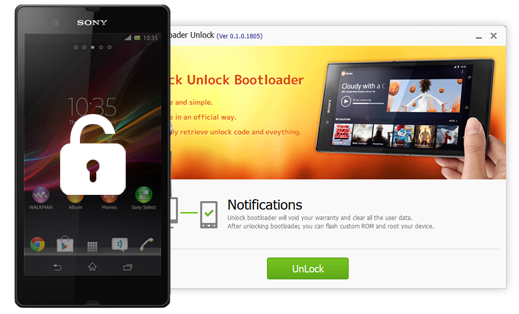
Help you to unlock the Bootloader first so that you could root and flash any custom recovery.
1. Make it safe and simple.
2. Have it done in an official way.
3. Support as many SONY devices as possible.
4. Automatically retrieve unlock code and eveything


Kingo Sony Bootloader Unlock - CNET Download.com


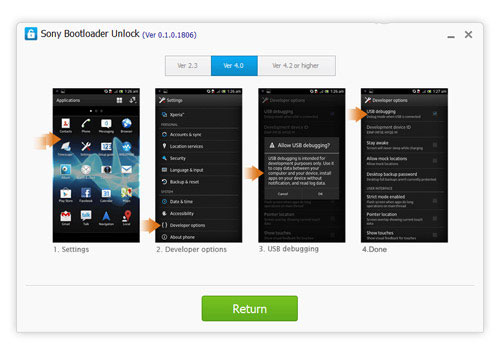
Enable USB Debugging

1. Connect your device to PC via USB cable. It is highly recommended that you use the original cable and plug it into the motherboard port.
2. Select your Android version and then follow the instructions as shown to enable USB Debugging.
3. After that, kingo will automatically install the device driver and establish connection with your device. Please be patient.


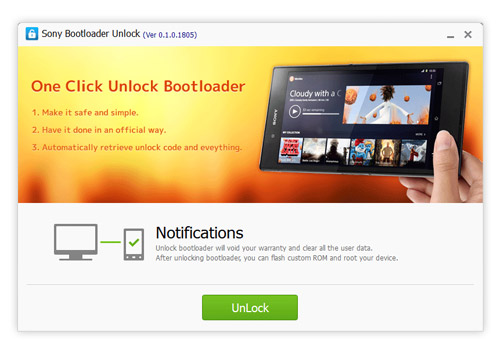
Read the Notifications

1. It is IMPORTANT that you read the notifications carefully to avoid trouble later on .
2. You have to be fully aware of the CONSEQUENCES before unlocking your Bootloader.
3. Which includes your WARRANTY CLAIM being voided and USER DATA being wiped off.


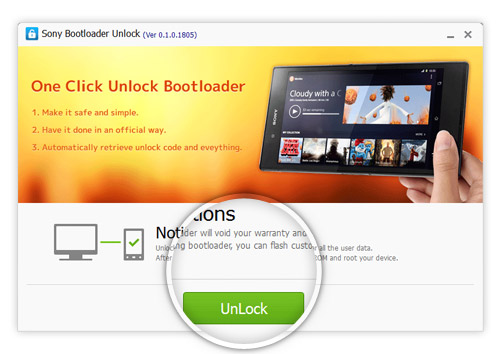
Click to Unlock

1. Click "Unlock" to start when you are ready.
2. It will take a few minutes before the whole process is complete.
3. During this course, please do not disconnect, move or touch your device in any way.


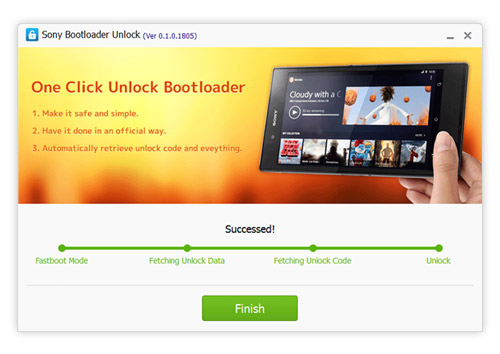
Unlock Succeeded!

1. Normally the unlocking process will go fine and succeed at last. Click "Finish" and wait for your device reboots itself so that your phone will be more stable.
2. If it fails, unfortunately, please contact us. And we will see what we can do to solve it.


រៀបចំដោយ : https://www.facebook.com/seyha kompongcham 

skype: seyha roth 

Tel: 0979666687/098882333

គណនី wing:00610827

បញ្ចាក់ទទួលខុសត្រូវដោយខ្លួនឯង

Wednesday, July 16, 2014

How To Root & Flash CWM Recovery On Sony Xperia M2 D2305

[Tutorial] How To Root & Flash CWM Recovery On Sony Xperia M2 D2305

[Tutorial] How To Root & Flash CWM Recovery On Sony Xperia M2 D2305

Sony Xperia M2 is the successor of Sony Xperia M and it is the mid ranger smartphone from Sony with packing of 4.8 Display, 1.2 Ghz Quad Core CPU, 1 GB RAM, 8 Megapixel Camera and 4.3 Jellybean. Its design is same as Sony Xperia Z, the latest smartphones and phablets from Sony all have the same design like the first Sony Xperia Z but any way we are now here with other purpose.

We will now flash/install a custom made recovery called "ClockWorkMod" (CWM) Recovery which enables us Flash ZIP Package files which include ROMs, Themes, Apps etc, Write permissions, wipe caches etc. It also enables us to Root the device. Get ready to Root & Flash CWM Recovery On Sony Xperia M2 D2305


Before You Begin: (must do)
1. First install drivers on your PC to support the device in fastboot mode,
a. Sony PC Companion   b. Flashtool Drivers
2. You should unlock the bootloader of your phone, please go to:  http://unlockbootloader.sonymobile.com/

Downloads:
1. Recovery.img (D2305 Model)
2. Fastboot.zip
3. Update-SuperSU.zip


Arranging Files:
1. Download the above Recovery img file and Fastboot.zip
2. Now according to your device model's recovery, you should rename the Recovery img file to recovery.img this reduces the creation of problem during fastboot.
3. Now Extract the fastboot.zip file.
4. Move the recovery.img file to the Fastboot folder, which you extracted before.
5. Now make sure your recovery img file is placed in fastboot folder.

Flashing Recovery:
1. Now turn off your phone. Hold Volume Up and Directly connect the USB Cable to device, release the button and you will see the LED light turns blue. Now it is fastboot mode.
2. Hold Shift and Right click on Fastboot folder and click "Open Command Window Here", a command window will be opened and type the following code:
fastboot flash recovery recovery.img
3. If the reply of command window was something like this finished. total time : 3.555 sec so your recovery is successfully flashed then type the following code:
fastboot reboot
4. To go into recovery mode, Restart your phone when the LED light turns  blue/pink/amber so keep pressing/tapping Volume Down button your phone will reboot in recovery mode.

Rooting:
1. Download the above Updat-SuperSu.zip file.
2. Move the file to the internal storage of your device.
3. Restart your phone in recovery mode, When the phone restarts and LED light turns pink/blue/amber/orange so keep pressing/tapping Volume Down button. Your device will boot in recovery mode.
4. In recovery mode Install zip from sdcard > Choose zip from sdcard and find the Update-SuperSu.zip file where you putted it before. Click that file and Proceed to install it.
5. After installation reboot your system. Enjoy Rooting.


Having Problems:
1. When you hold Volume Up and Connect the USB Cable and LED light turns blue then again green and goes for charging so your drivers are missing, the PC is not able to support your device in fastboot mode.
2. After entering the code if the command window reply was waiting for device so still the device drivers are missing. Try reinstalling more drivers on PC.


Screen Shots:
Recovery Mode
SuperSU 

រៀបចំដោយ : https://www.facebook.com/seyha kompongcham

skype: seyha roth

Tel: 0979666687/098889568

គណនី wing:00610827
បញ្ចាក់ទទួលខុសត្រូវដោយខ្លួនឯង
 

Saturday, July 5, 2014

Firmware sony all មាននៅទីនេះ


Xperia 2010
Xperia 2011
Xperia 2012
Xperia 2013
Xperia 2014
1. កម្មវិធីដែលត្រូវមានសំរាប់ SONY Smart Phone
Sony PC Companion សំរាប់ Driver
Sony Update Service (Windows)​​​​ សំរាប់ Update/Repair/Restore
Sony Bridge (Mac OS) សំរាប់ Update/Repair/Restore
2. Software សំរាប់ SONY Smart Phone
  • 7-zip | Firmwares ខ្លះបានបង្រួមជា RAR/7Z/ZIP ដូចនេះត្រូវពន្លាជា .FTF សំរាប់Flashtool
  • Flashtool | សរសេរ Flash Firmware (.FTF) សម្រាប់ Windows Linux និង Mac OS X
  • Flashtool Sony Mobile (ផ្លូវការ Official)  | សំរាប់ឧបករណ៏ដែលបាន Unlocked Bootloader
 រៀបចំដោយ: facebook.com/seyha kompongcham
skype: seyha roth

Tel: 0979666687/098889568 

គណណី/ wing: 00610827
បញ្ចាក់ទទួលខុសត្រូវដោយខ្លួនឯង


ចំលងពី: elunchen.com

Friday, June 20, 2014

Official 4.3 Jellybean Firmware


Sony Xperia M Dual C2005 Official 4.3 Jellybean Firmware 15.5.A.0.18

Manufacturer: Sony
Model: Xperia M Dual C2005
Android Version: Android 4.3 Jellybean
Firmware: 15.5.A.0.18
Status: Official
Size: 677 MB
រៀបចំដោយ  facebook Oun Seyhacc
Skype : seyha roth
 គណនី wing  00610827 
 
Tel: 0979666687/098889568
   
បញ្ចាក់សុំទទួលខុសត្រូវដោយខ្លួនឯង

[Tutorial] How To Root & Flash CWM Recovery On Sony Xperia M2 D2305

[Tutorial] How To Root & Flash CWM Recovery On Sony Xperia M2 D2305

[Tutorial] How To Root & Flash CWM Recovery On Sony Xperia M2 D2305

Sony Xperia M2 is the successor of Sony Xperia M and it is the mid ranger smartphone from Sony with packing of 4.8 Display, 1.2 Ghz Quad Core CPU, 1 GB RAM, 8 Megapixel Camera and 4.3 Jellybean. Its design is same as Sony Xperia Z, the latest smartphones and phablets from Sony all have the same design like the first Sony Xperia Z but any way we are now here with other purpose.

We will now flash/install a custom made recovery called "ClockWorkMod" (CWM) Recovery which enables us Flash ZIP Package files which include ROMs, Themes, Apps etc, Write permissions, wipe caches etc. It also enables us to Root the device. Get ready to Root & Flash CWM Recovery On Sony Xperia M2 D2305


Before You Begin: (must do)
1. First install drivers on your PC to support the device in fastboot mode,
a. Sony PC Companion   b. Flashtool Drivers
2. You should unlock the bootloader of your phone, please go to:  http://unlockbootloader.sonymobile.com/

Downloads:
1. Recovery.img (D2305 Model)
2. Fastboot.zip
3. Update-SuperSU.zip


Arranging Files:
1. Download the above Recovery img file and Fastboot.zip
2. Now according to your device model's recovery, you should rename the Recovery img file to recovery.img this reduces the creation of problem during fastboot.
3. Now Extract the fastboot.zip file.
4. Move the recovery.img file to the Fastboot folder, which you extracted before.
5. Now make sure your recovery img file is placed in fastboot folder.

Flashing Recovery:
1. Now turn off your phone. Hold Volume Up and Directly connect the USB Cable to device, release the button and you will see the LED light turns blue. Now it is fastboot mode.
2. Hold Shift and Right click on Fastboot folder and click "Open Command Window Here", a command window will be opened and type the following code:
fastboot flash recovery recovery.img
3. If the reply of command window was something like this finished. total time : 3.555 sec so your recovery is successfully flashed then type the following code:
fastboot reboot
4. To go into recovery mode, Restart your phone when the LED light turns  blue/pink/amber so keep pressing/tapping Volume Down button your phone will reboot in recovery mode.

Rooting:
1. Download the above Updat-SuperSu.zip file.
2. Move the file to the internal storage of your device.
3. Restart your phone in recovery mode, When the phone restarts and LED light turns pink/blue/amber/orange so keep pressing/tapping Volume Down button. Your device will boot in recovery mode.
4. In recovery mode Install zip from sdcard > Choose zip from sdcard and find the Update-SuperSu.zip file where you putted it before. Click that file and Proceed to install it.
5. After installation reboot your system. Enjoy Rooting.


Having Problems:
1. When you hold Volume Up and Connect the USB Cable and LED light turns blue then again green and goes for charging so your drivers are missing, the PC is not able to support your device in fastboot mode.
2. After entering the code if the command window reply was waiting for device so still the device drivers are missing. Try reinstalling more drivers on PC.


Screen Shots:
Recovery Mode
SuperSU 
រៀបចំដោយ  facebook Oun Seyhacc
Skype : seyha roth
 គណនី wing  00610827 

Tel: 0979666687/098889568
 
បញ្ចាក់សុំទទួលខុសត្រូវដោយខ្លួនឯង

Thursday, June 19, 2014

Tutorial] How To Root & Flash CWM Recovery On Sony Xperia M2 D2305

[Tutorial] How To Root & Flash CWM Recovery On Sony Xperia M2 D2305

[Tutorial] How To Root & Flash CWM Recovery On Sony Xperia M2 D2305

Sony Xperia M2 is the successor of Sony Xperia M and it is the mid ranger smartphone from Sony with packing of 4.8 Display, 1.2 Ghz Quad Core CPU, 1 GB RAM, 8 Megapixel Camera and 4.3 Jellybean. Its design is same as Sony Xperia Z, the latest smartphones and phablets from Sony all have the same design like the first Sony Xperia Z but any way we are now here with other purpose.

We will now flash/install a custom made recovery called "ClockWorkMod" (CWM) Recovery which enables us Flash ZIP Package files which include ROMs, Themes, Apps etc, Write permissions, wipe caches etc. It also enables us to Root the device. Get ready to Root & Flash CWM Recovery On Sony Xperia M2 D2305


Before You Begin: (must do)
1. First install drivers on your PC to support the device in fastboot mode,
a. Sony PC Companion   b. Flashtool Drivers
2. You should unlock the bootloader of your phone, please go to:  http://unlockbootloader.sonymobile.com/

Downloads:
1. Recovery.img (D2305 Model)
2. Fastboot.zip
3. Update-SuperSU.zip


Arranging Files:
1. Download the above Recovery img file and Fastboot.zip
2. Now according to your device model's recovery, you should rename the Recovery img file to recovery.img this reduces the creation of problem during fastboot.
3. Now Extract the fastboot.zip file.
4. Move the recovery.img file to the Fastboot folder, which you extracted before.
5. Now make sure your recovery img file is placed in fastboot folder.

Flashing Recovery:
1. Now turn off your phone. Hold Volume Up and Directly connect the USB Cable to device, release the button and you will see the LED light turns blue. Now it is fastboot mode.
2. Hold Shift and Right click on Fastboot folder and click "Open Command Window Here", a command window will be opened and type the following code:
fastboot flash recovery recovery.img
3. If the reply of command window was something like this finished. total time : 3.555 sec so your recovery is successfully flashed then type the following code:
fastboot reboot
4. To go into recovery mode, Restart your phone when the LED light turns  blue/pink/amber so keep pressing/tapping Volume Down button your phone will reboot in recovery mode.

Rooting:
1. Download the above Updat-SuperSu.zip file.
2. Move the file to the internal storage of your device.
3. Restart your phone in recovery mode, When the phone restarts and LED light turns pink/blue/amber/orange so keep pressing/tapping Volume Down button. Your device will boot in recovery mode.
4. In recovery mode Install zip from sdcard > Choose zip from sdcard and find the Update-SuperSu.zip file where you putted it before. Click that file and Proceed to install it.
5. After installation reboot your system. Enjoy Rooting.


Having Problems:
1. When you hold Volume Up and Connect the USB Cable and LED light turns blue then again green and goes for charging so your drivers are missing, the PC is not able to support your device in fastboot mode.
2. After entering the code if the command window reply was waiting for device so still the device drivers are missing. Try reinstalling more drivers on PC.


Screen Shots:
Recovery Mode
SuperSU 
រៀបចំដោយ  facebook Oun Seyhacc
Skype : seyha roth
 គណនី wing  00610827 

Tel: 0979666687/098889568
 
បញ្ចាក់សុំទទួលខុសត្រូវដោយខ្លួនឯង